Option, Firmware Update
How to update firmware
Update firmware at "Firmware update" in the Options on the left sidebar.
To update firmware, follow the steps.
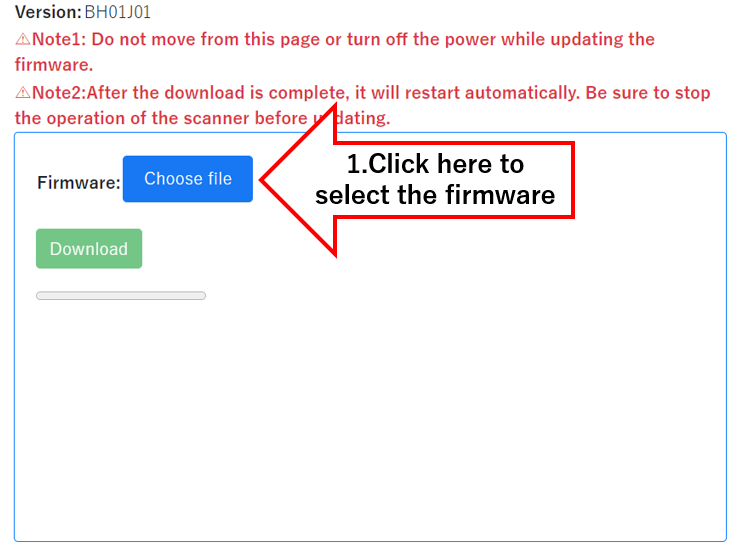
- Select the firmware to update from "Select file".
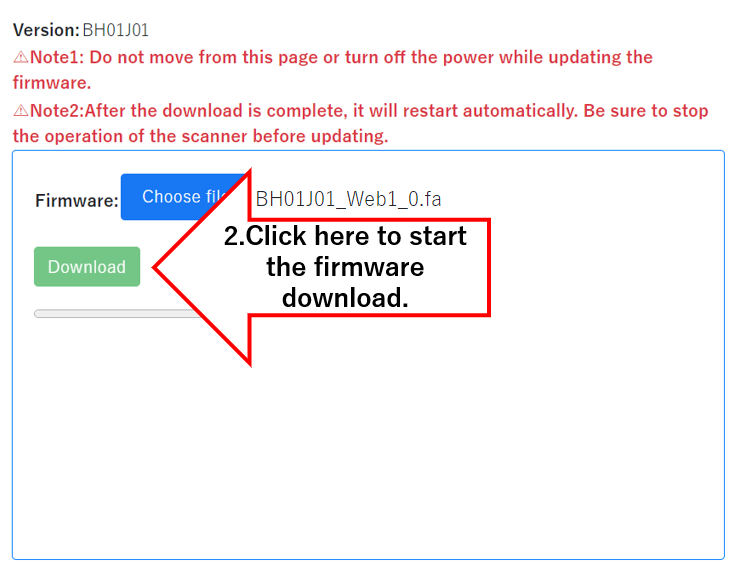
- Click "Download" to start the update.
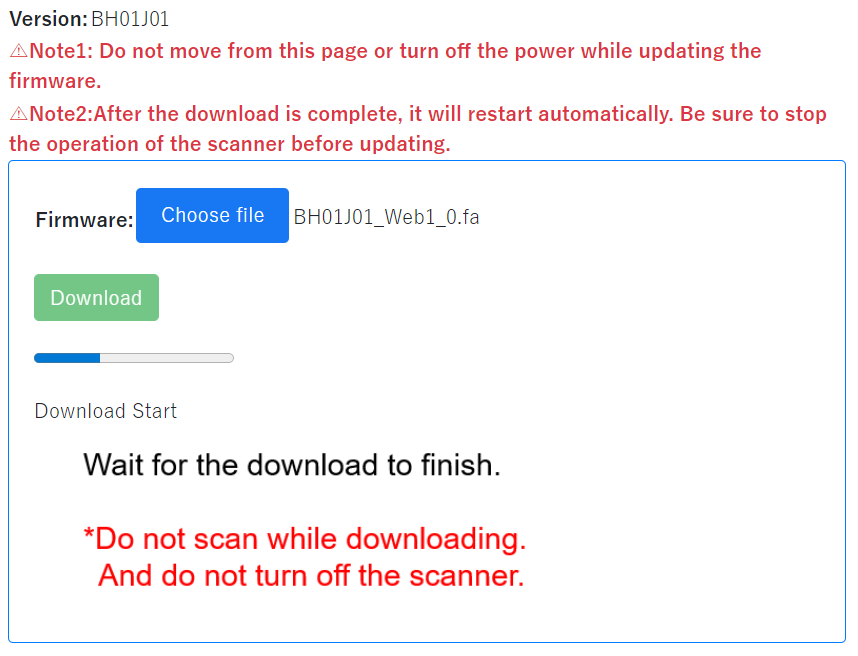
- When the progress bar reaches the right end, the scanner will reboot to reflect the firmware contents.
- Wait for 3 minutes till the second progress bar reaches the right end. And then automatically jump to the top page.
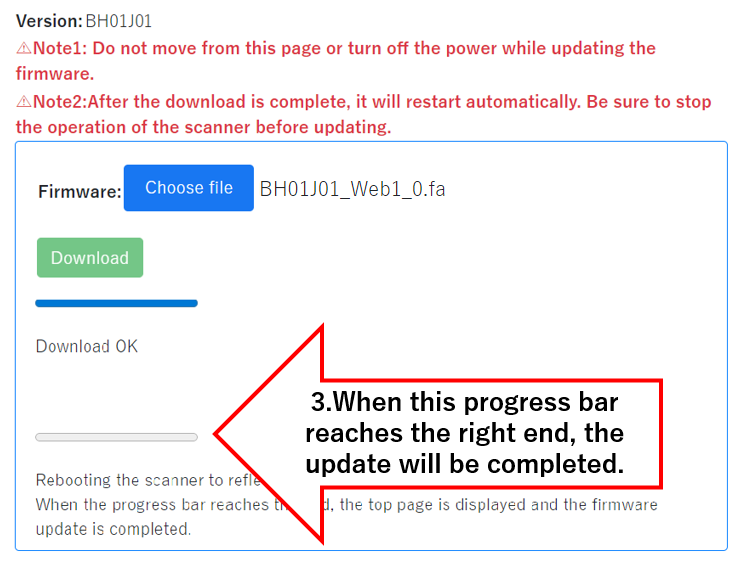
The firmware update is completed.
While updating firmware, do not close the firmware update page, do not move from the firmware update page, and do not turn off the PC or scanner. Be sure to stop the scanner operations like scanning before updating.
After the update, the Web window may display the previous firmware due to the cache of the host computer. In that case, super reload the computer (Windows: Ctrl + F5, Mac: Command + R).
Initialize / Reboot
Initialize and reboot the scanner.
Once initialized, the scanner can not restore the previous settings. If you accidentally initialize the scanner and need to return to the settings before initialize, you need to set each setting again.
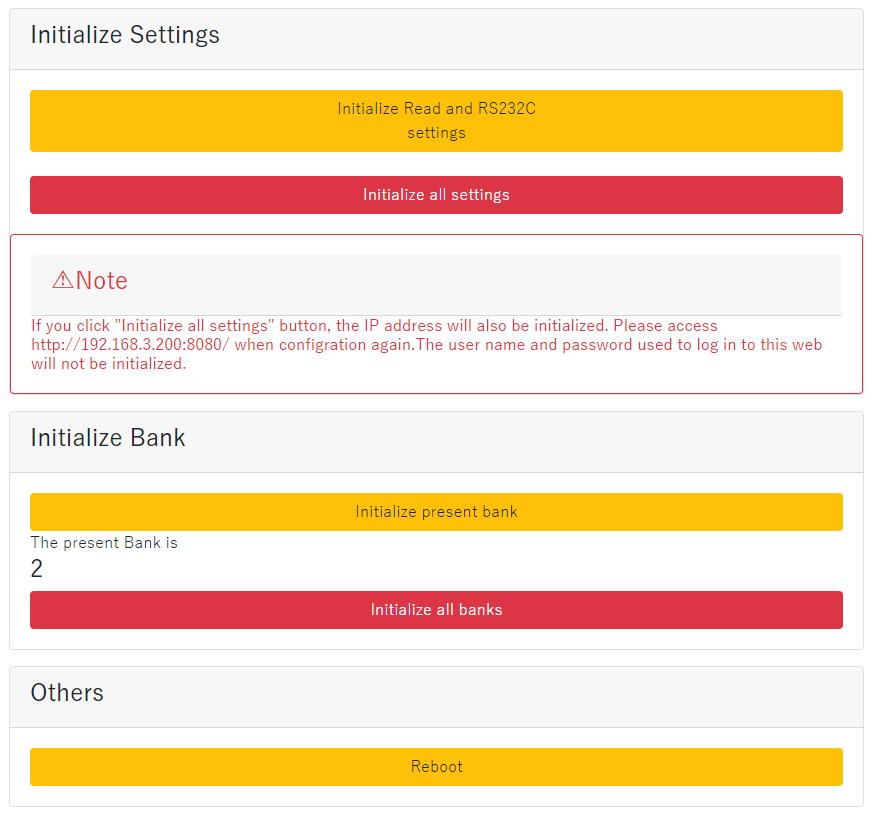
| Initialize scan setting and RS-232C setting | All scanner settings will be factory settings except for "Network setting" in "3. Communication", "PLC Link", "FTP Connect setting", "SNTP setting", FTP transfer setting for "Image output setting" in "2. Output", and "Output data with RS-232C" for "Data output setting" in "2. Output". |
|---|---|
| Initialize Read and RS-232C and Ethernet settings | All settings will be factory settings. |
| Initialize present bank | The current bank will be factory settings. |
| Initialize all banks | All banks will be factory settings. |
| Reboot | Reboot the scanner. Reboot will take some time. Wait until the scanner sounds the beep. |
If you click "Initialize Read and RS-232C and Ethernet settings", the IP address will also be initialized. To set again, access: http://192.168.3.200:8080/ The user name and password set in the "Security settings" will not be initialized.
Security
To ensure security, be sure to update the user name and password from the initial settings.
Set the user name and password to log in to each setting, initialize/reboot page, and firmware update page.
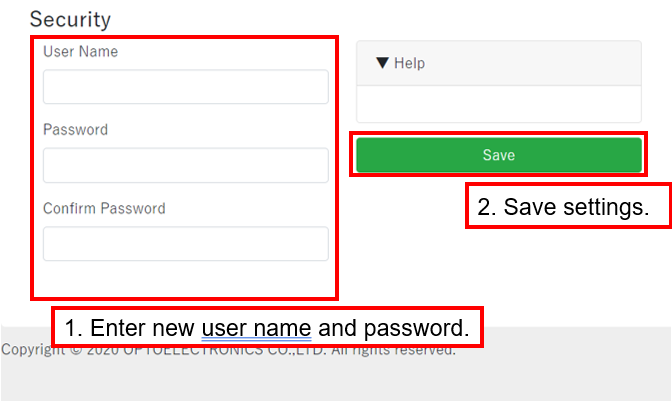
Enter the same character string in "Password" and "Password confirmation."
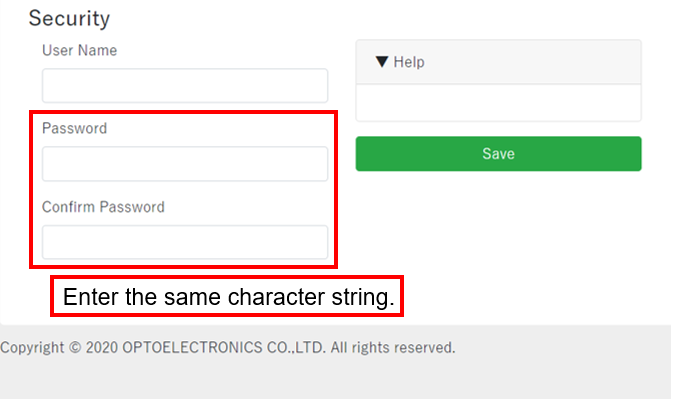
Set the user name and password within 16 characters.
The following characters can be used for the user name and password.
- Uppercase single-byte alphabet
- Lowercase single-byte alphabet
- Single-byte numbers
- "-" (single-byte hyphen)
- "_" (single-byte underscore)
Software Licenses
Software licenses for open source software (OSS) can be viewed at “Options” -> “Software Licenses.”